

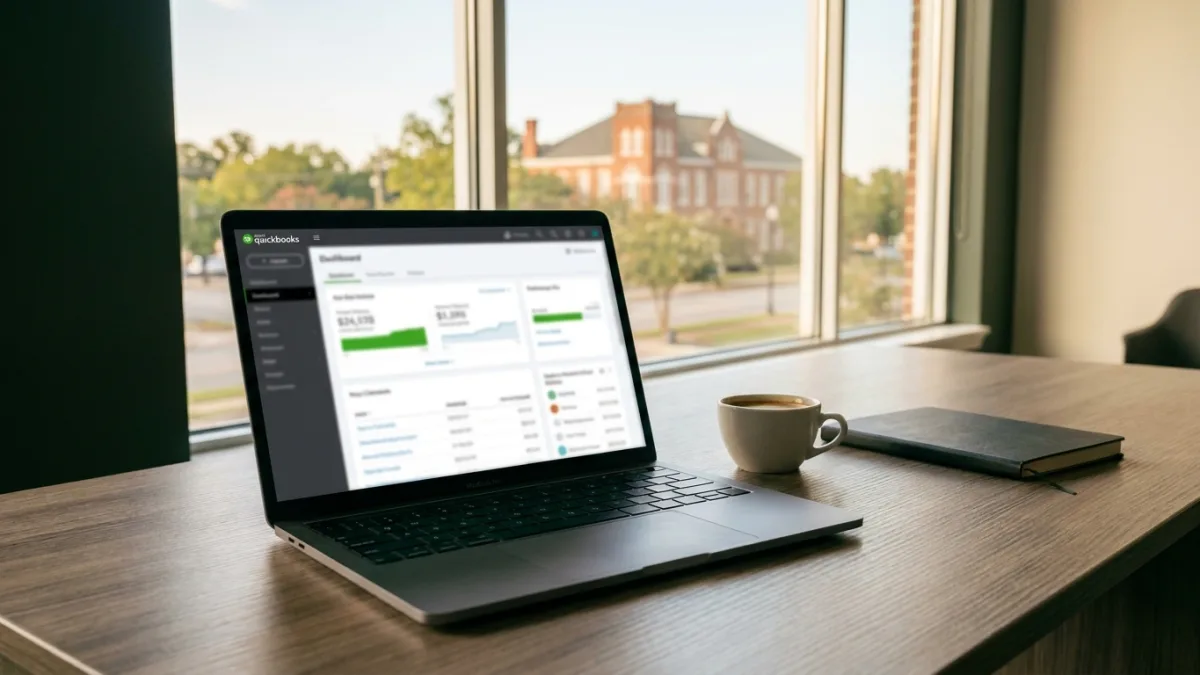
Businesses that have relied on QuickBooks Desktop for years are increasingly moving their financial data to the cloud. Migrating from QuickBooks Desktop to QuickBooks Online offers benefits like remote access, automatic backups, and real-time collaboration with your bookkeeper or accountant. If you are thinking about making the switch, understanding the official migration process and the timeline involved can help you avoid data loss and downtime.
Why Businesses Move to QuickBooks Online
QuickBooks Online has become the preferred platform for many small business owners and bookkeeping firms. Because it lives in the cloud, you can access your financial records from any device with an internet connection. This makes it easier for a bookkeeping service like Grace Bookkeeping LLC to handle monthly reconciliations and produce up‑to‑date profit‑and‑loss statements without having to swap files back and forth. The shift also eliminates the need to manage local backups, software updates, and single‑user licensing.
Before You Begin the Migration
Before you start the technical steps, there are a few things to review. First, confirm that you are running a supported version of QuickBooks Desktop. The built‑in migration tool is available for QuickBooks Desktop Pro and Premier. If you use QuickBooks Enterprise, you may need a different conversion process, which you should verify with Intuit support or your accountant. Second, make sure your company file is clean. Unreconciled transactions, old inventory items, and duplicate accounts can cause problems during the transfer. It is often wise to run a full backup and do a final review of your chart of accounts before exporting. Before you move your data, it also helps to review a full QuickBooks Online setup guide for small businesses so you understand how your chart of accounts, bank feeds, invoices, users, and reports should be configured after the migration.

Step‑by‑Step Migration for QuickBooks Desktop Pro and Premier
The official method to migrate from QuickBooks Desktop to Online is built directly into the desktop software. The steps are straightforward when you have the company file open on the computer where Desktop is installed.
Open your company file in QuickBooks Desktop Pro or Premier.
Go to the Company menu at the top of the screen.
Select the option labeled “Export Company File to QuickBooks Online.”
Click “Get started” when the migration wizard appears.
Choose “Select destination” and sign in to your Intuit account.
Follow the on‑screen instructions to complete the export.
Once the export finishes, QuickBooks Online will begin importing your data. Depending on the size of your company file, this can take anywhere from a few minutes to several hours. After the process is complete, you will receive a confirmation email and can log in to review your data.
Important Deadline for Desktop Customers
Intuit set a specific deadline for moving from certain Desktop versions to QuickBooks Online. According to official guidance, customers were required to initiate their migration by July 31, 2024. If you are reading this after that date, it is possible that the free‑migration offer has ended or that the self‑guided tool may no longer be available. To confirm your options, visit the Intuit migration help page or speak with a QuickBooks‑certified bookkeeper. Grace Bookkeeping LLC can help you verify whether your version of Desktop is still eligible and what steps are needed.

What a Bookkeeper Can Do to Help
Migrating from QuickBooks Desktop to QuickBooks Online does not always require you to have the desktop file on hand. Intuit provides an online tool that allows bookkeepers to migrate a client’s company file even without direct access to the desktop data. This is particularly useful if your bookkeeper has already been working with a copy of your file or if your Desktop software is no longer installed. An experienced accountant or a bookkeeping firm like Grace Bookkeeping LLC can handle the entire conversion, review the imported data for accuracy, and set up your new chart of accounts before you start using the online version.
Need Help Moving from QuickBooks Desktop to QuickBooks Online?
A QuickBooks migration is more than a file transfer. Your chart of accounts, opening balances, invoices, bills, bank registers, payroll settings, and reports all need to be reviewed after the move. Grace Bookkeeping LLC can help you migrate your QuickBooks Desktop file, verify your data, clean up your accounts, and set up QuickBooks Online correctly from the start.
Schedule your free consultation today.
What to Expect After the Migration
After your data moves to QuickBooks Online, you will notice some changes in how you work. The user interface is different from Desktop, and some features work differently. For example, inventory tracking and payroll may require adjustments. It is normal for a few pieces of data not to transfer perfectly. Intuit publishes a list of items that do not carry over during a standard migration, including certain custom reports, batch transactions, and memorized reports. Your bookkeeper should review your opening balances, outstanding invoices, and bank account registers to make sure everything is correct. Many firms recommend running a trial balance comparison between the Desktop file and the Online file as a final check. Once the data has been imported and verified, follow a QuickBooks Online setup for small businesses checklist to finish bank connections, user permissions, invoice settings, opening balances, reports, and monthly reconciliation.

Common Concerns and How to Address Them
Some business owners worry about losing data or experiencing long downtime. To minimize risk, always keep a backup copy of your Desktop file before starting the migration. If something goes wrong, you can restore the backup and try again. Another concern is the learning curve. QuickBooks Online has a different layout, but basic tasks like creating invoices, paying bills, and reconciling accounts remain similar. If your bookkeeping service handles these tasks for you, the change may be invisible to you beyond better reporting and faster access to your financial statements.
Frequently Asked Questions
What is the deadline for moving from QuickBooks Desktop to QuickBooks Online?
Intuit required customers to initiate migration by July 31, 2024, as part of a specific offer. If you missed that deadline, you should check Intuit’s current migration options because the offer may have expired. A bookkeeping professional can help you explore alternative methods.
Can an accountant migrate my data without my Desktop file?
Yes. Intuit provides an online tool that allows accountants to convert a client’s file even when the desktop software is not available. This is helpful if you no longer have the program installed or if your bookkeeper already has a copy of your company file.
What steps do I follow if I use QuickBooks Desktop Pro or Premier?
Open your company file, go to the Company menu, select “Export Company File to QuickBooks Online,” click Get started, choose a destination, and sign in to your Intuit account. The wizard will guide you through the remaining steps.
Stop Guessing. Start Growing.
Don’t wait for tax season to find out how your business is performing. In our first six months, we’ve helped businesses move from financial chaos to total clarity. Get the expert bookkeeping support you need to make confident, data-driven decisions today.
Does all my data transfer to QuickBooks Online?
Most core accounting data transfers, including customers, vendors, accounts, and transaction history. However, some items like custom reports, memorized reports, and batch transactions do not carry over. Always verify your opening balances and reconcile accounts after the move.
Moving from QuickBooks Desktop to QuickBooks Online takes careful planning, but the result is a modern, cloud‑based accounting system that helps you and your bookkeeping team stay on the same page. Whether you choose to run the migration yourself or enlist a professional such as Grace Bookkeeping LLC, the key is to start with a clean file, follow the official steps, and always keep a backup of your Desktop data. Once the transition is complete, you will gain the flexibility and real‑time insight that only an online platform can provide.

Leave a Reply