

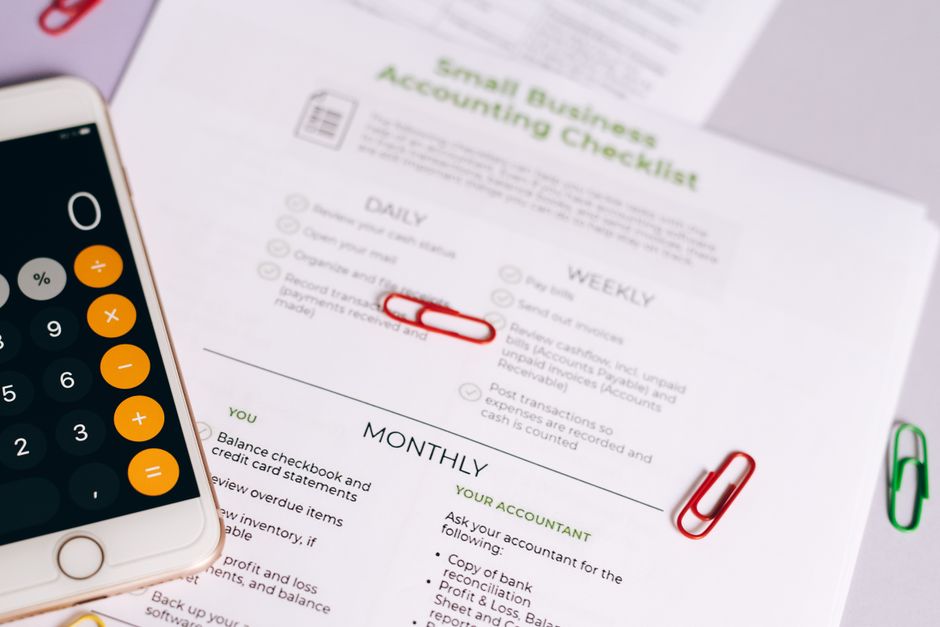
For many small business owners, managing finances is one of the biggest challenges. Between tracking income, paying bills, and preparing for taxes, it is easy to feel overwhelmed. QuickBooks Online is designed to help you manage your business finances with ease. Whether your business is starting up or leveling up, QuickBooks has the tools, features, and resources to get you set up for success. Setting up accounting software may seem intimidating at first, but with the right approach you can have your books organized and running smoothly.
Why QuickBooks Online Works for Small Businesses
QuickBooks Online is the most popular accounting software solution for many small businesses in the United States. It allows you to handle day-to-day financial record management, process invoices, track expenses, and simplify tax preparation from any device with an internet connection. The software uses cloud technology so you can access your data anywhere. Millions of customers use QuickBooks globally, and it integrates with many other business tools. For a small business owner, having a clear view of profit and loss, balance sheets, and cash flow is critical. QuickBooks Online provides that clarity without requiring an accounting degree.
Stop Guessing. Start Growing.
Don’t wait for tax season to find out how your business is performing. In our first six months, we’ve helped businesses move from financial chaos to total clarity. Get the expert bookkeeping support you need to make confident, data-driven decisions today.
Key Features That Simplify Setup
QuickBooks Online includes automation tools that save time. It connects directly to your bank and credit card accounts so transactions import automatically. You can then categorize those transactions with a few clicks. The software also offers customizable invoices, expense tracking, and financial reporting. For those who need extra help, Intuit Intelligence combines AI, human expertise, and your business data to provide instant insights and expert guidance. This means you get automation where it counts and human support when it matters.
Step 1: Decide How You Will Manage Your Books
Before you begin entering data into QuickBooks Online, it helps to decide how you will manage your bookkeeping overall. According to QuickBooks, the first step in setting up your bookkeeping is to decide how you will manage your books. This means choosing between handling everything yourself, hiring a part-time bookkeeper, or working with a professional bookkeeping service like Grace Bookkeeping LLC. Many small business owners start on their own but later outsource to save time and reduce errors. Your choice will affect how you configure user permissions and which reports you need most.
Step 2: Choose a Bookkeeping Method
The next step is selecting a bookkeeping method. QuickBooks recommends choosing between cash-basis and accrual-basis accounting. Cash-basis records income when you receive money and expenses when you pay them. Accrual-basis records income when you invoice a customer and expenses when you receive a bill, regardless of when money changes hands. Most small businesses start with cash-basis because it is simpler. QuickBooks Online supports both methods, and you can switch later if your business grows or your accountant prefers accrual. The method you choose affects how your financial reports look, so consult with a tax professional if you are unsure.

Step 3: Select Your QuickBooks Online Plan and Sign Up
Once you have a bookkeeping method in mind, it is time to sign up for QuickBooks Online. Intuit offers different plans with varying features. You can visit the QuickBooks website to see plans and pricing. There is no one-size-fits-all plan, so consider how many users you need, whether you want to track inventory, and if you need to manage payroll. During signup, you will enter your business name, address, and tax ID. This information populates your invoices and reports. QuickBooks also offers resources for small business owners and self-employed individuals to gain insights and enhance productivity.
Step 4: Connect Your Bank and Credit Card Accounts
Connecting your financial accounts is one of the most time-saving parts of QuickBooks Online setup. After signing up, navigate to the banking section and link your business checking, savings, and credit card accounts. QuickBooks will import recent transactions automatically. You can then review and categorize each transaction. This connection eliminates manual data entry and reduces the chance of mistakes. The software will also match imported transactions to any bills or invoices you have already recorded, keeping your books current.
Stop Guessing. Start Growing.
Don’t wait for tax season to find out how your business is performing. In our first six months, we’ve helped businesses move from financial chaos to total clarity. Get the expert bookkeeping support you need to make confident, data-driven decisions today.
Step 5: Customize Your Chart of Accounts
The chart of accounts is the backbone of your bookkeeping. It lists every account you use to track income, expenses, assets, liabilities, and equity. QuickBooks Online provides a default chart of accounts, but you should customize it to fit your business. For example, if you run a bakery, you might need accounts for flour, sugar, and baking supplies. If you are a consultant, you may only need a few expense categories. Take time to review the default list and add or remove accounts. This step is critical because accurate categorization leads to useful financial reports. If you are unsure how to categorize your expenses, consider working with a bookkeeping professional to set up a chart of accounts that matches your industry.

Step 6: Customize Invoices and Sales Forms
Your invoices represent your business. QuickBooks Online allows you to customize invoice templates with your logo, colors, and payment terms. You can also set up recurring invoices for regular customers. In the sales settings, specify your default invoice terms, such as net 30 or due on receipt. Customizing invoices makes you look professional and helps you get paid faster. You can also enable online payment options so customers can pay directly from the invoice.
Step 7: Set Up Users and Permissions
If you have employees, a bookkeeper, or an accountant who needs access to your QuickBooks Online account, add them as users. You can assign different permission levels. For example, you may give your bookkeeper full access to transactions and reports, while an employee who only enters expenses can have limited access. Setting up users early prevents confusion later and keeps your data secure.

Step 8: Import Your Opening Balances and Historical Data
When you start using QuickBooks Online after having done business for a while, you need to enter your opening balances. Import your outstanding invoices (accounts receivable), unpaid bills (accounts payable), and current bank balances. You can also bring in last year’s profit and loss data to compare performance. QuickBooks Online has import tools that accept spreadsheets, but it is wise to review the data carefully. If your records are messy, you might consider a cleanup service to get a fresh start. If your historical accounting data is currently stored in Desktop, review how to migrate from QuickBooks Desktop to QuickBooks Online before importing opening balances, invoices, bills, and bank history manually.
Step 9: Review Reports and Reconcile Monthly
Once your setup is complete, run key reports like the profit and loss statement and balance sheet. These reports show whether your business is making money and where your cash stands. QuickBooks Online makes it easy to generate these reports at any time. From there, commit to reconciling your bank and credit card accounts each month. Reconciliation ensures that your QuickBooks records match your actual bank statements. This habit catches errors early and gives you confidence in your numbers. Regular reconciliation also simplifies tax preparation at year end.
Additional Tips for Ongoing Success
QuickBooks Online is a powerful tool, but it works best when you use it consistently. Set aside time each week to review transactions and categorize any new items. Use the mobile app to capture receipts and mileage on the go. Take advantage of the resources provided by Intuit for small business owners, including guides and webinars. If you need extra support, consider partnering with a bookkeeping service that specializes in QuickBooks Online setup and ongoing full-cycle bookkeeping. Professional help can free you from time-consuming financial tasks and ensure your books stay accurate.
Frequently Asked Questions
Is QuickBooks Online worth it for a small business?
QuickBooks Online is designed to help small businesses manage finances with ease. It reduces manual data entry through bank connections and provides real-time reports. For most business owners, the time saved and the clarity gained make it a worthwhile investment. The cost varies by plan, so you can choose features that fit your budget.
What information do I need to set up QuickBooks Online?
You will need your business name, address, tax identification number, and your bank account and credit card details. It also helps to have a list of your current customers, vendors, and any outstanding invoices or bills. Having your chart of accounts planned in advance makes setup faster.
Can I set up QuickBooks Online by myself?
Yes, many small business owners set up QuickBooks Online on their own. The software provides step-by-step guidance and resources. However, if you are unsure about categorizing expenses or setting up a chart of accounts, a bookkeeping professional can assist. Services like Grace Bookkeeping LLC offer setup and training support.
How long does it take to set up QuickBooks Online?
The initial setup, including signing up and connecting a bank account, can take an hour or two. Customizing your chart of accounts, importing historical data, and setting up users may take additional time, especially if your records are not organized. Allow a few days to complete everything thoroughly.
Do I need to reconcile every month?
Yes, monthly reconciliation is highly recommended. It ensures that your QuickBooks records match your actual bank statements. Regular reconciliation catches errors, prevents fraud, and gives you accurate financial reports. QuickBooks Online makes reconciliation straightforward by suggesting matches for imported transactions.
Setting up QuickBooks Online for your small business does not have to be overwhelming. By following these steps and using the resources available, you can create a solid financial foundation. Whether you choose to manage the books yourself or enlist professional support, taking the time to set up correctly will pay off in clearer financial insights and more time to focus on running your business.
Stop Guessing. Start Growing.
Don’t wait for tax season to find out how your business is performing. In our first six months, we’ve helped businesses move from financial chaos to total clarity. Get the expert bookkeeping support you need to make confident, data-driven decisions today.

Leave a Reply